

Sidebar
Copy pageThe sidebar provides an always-visible agent overview pinned to the left edge or top edge of every tmux window. Unlike the dashboard, which is a full-screen TUI you open on demand, the sidebar stays on screen while you work.
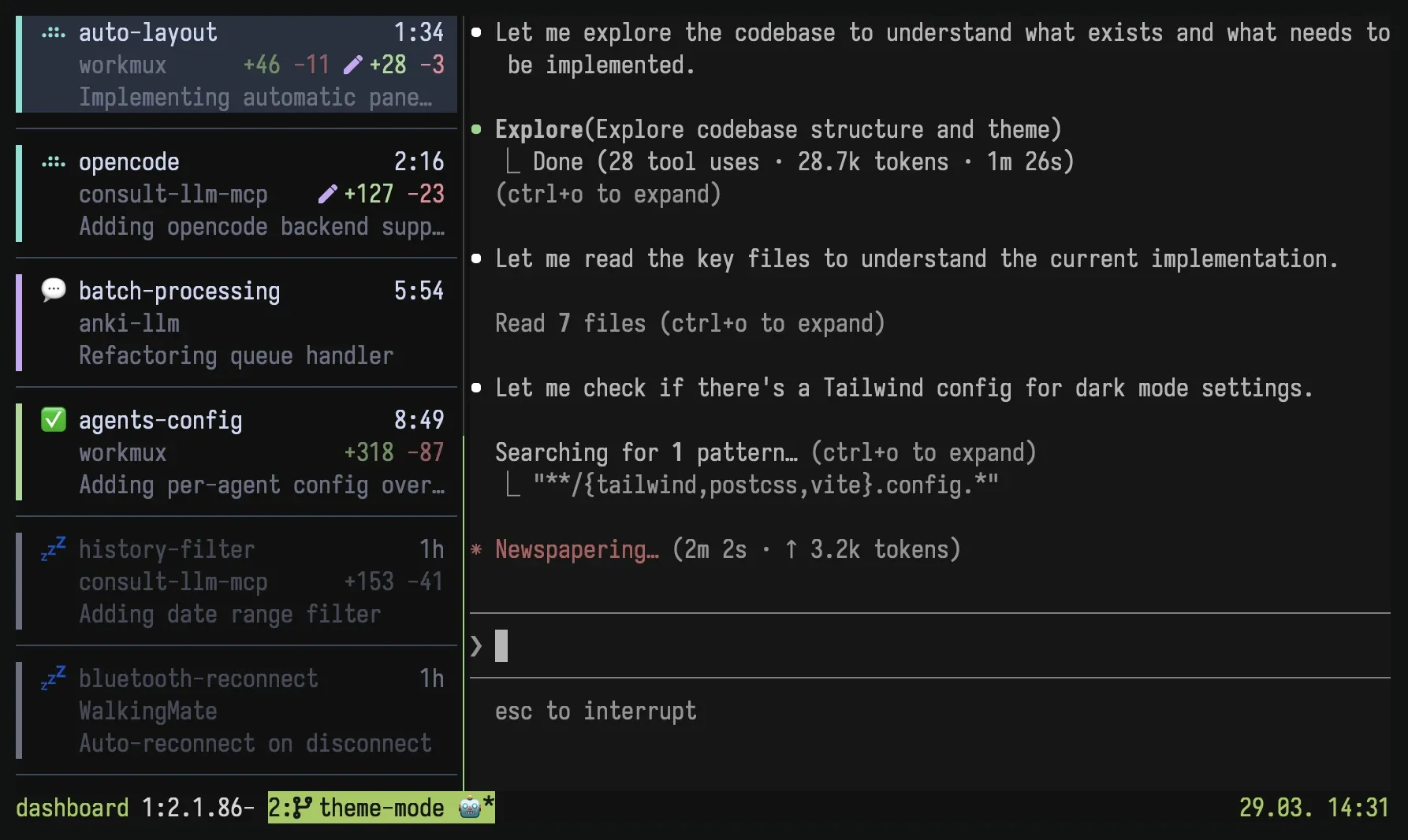
Toggle the sidebar with:
workmux sidebar # All sessions (default)workmux sidebar --session # Current session only, or opt out of global modeworkmux sidebar --position top # Override configured placement for this toggleBy default, the sidebar appears in all existing and newly created tmux windows
across all sessions. Use --session to scope it to the current session only,
leaving other sessions untouched. Use --position left or --position top to
override the configured placement when enabling the sidebar. Running the command
again disables it.
When the global sidebar is active, workmux sidebar --session hides it in the
current tmux session only. Run it again to show the sidebar in that session
again without affecting other sessions.
Optionally, add a tmux binding for quick access:
bind C-t run-shell "workmux sidebar"What it shows
Section titled “What it shows”Each agent is displayed as a tile showing:
- Status icon with spinner animation (working/waiting/done)
- Worktree name and elapsed time since last status change
- Project name and git diff stats (committed + uncommitted lines)
- Optional pull request number and check status for the current branch
- Agent task description
The exact layout, styling, and per-agent icons are fully customizable; see Customization.
Configuration
Section titled “Configuration”Configure the sidebar in your global ~/.config/workmux/config.yaml or project
.workmux.yaml:
# Shared by the dashboard and sidebar; defaults to one hour.stale_after: 5h # integer seconds or a duration such as 90m or 5h
sidebar:  # Position: "left" (default) or "top"  position: left
  # Left sidebar width: absolute columns or percentage of terminal width  width: 40 # absolute columns  # width: "15%"  # percentage of terminal width
  # Layout mode for the left sidebar: "compact" or "tiles" (default)  layout: tiles
  # Enter focuses the pane by default. Use "select" to show its window while  # keeping focus in the sidebar.  enter_action: focus
  # Dim stale agents (default: true; uses the shared stale_after threshold)  dim_stale: true
  # Row ordering: "recency" (default), "priority" or "window"  sort: recency
  # Group agents into labeled sections: "project" or "session". Unset by  # default, which keeps one flat list without headers  group_by: project
  # While grouped, fold each group's stale agents behind a toggle  # (default: true)  collapse_stale: true
For a horizontal top bar:
sidebar:  position: top
  # Top bar height in rows  height: 3
  horizontal:    item_width: 24 # horizontal chip width in columns
  templates:    horizontal:      - "{status_icon} {primary} {pane_suffix} {fill} {elapsed}"      - "{secondary} {fill} {git_stats}"      - "{pane_title}"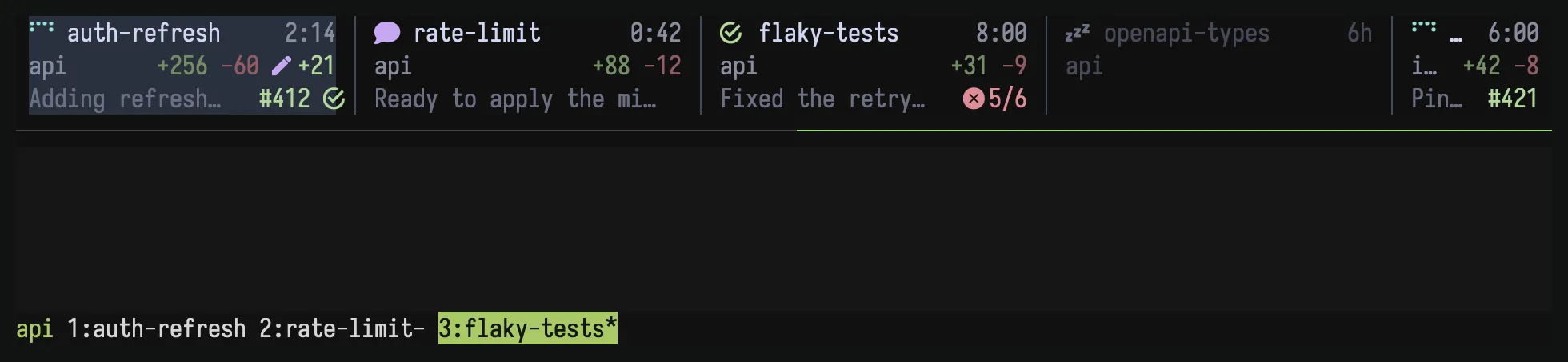
Width defaults to 10% of terminal width, clamped between 25 and 50 columns.
When set explicitly, the clamp is removed (minimum 1 column). Widths above
80 columns use the default width so tmux pane expansion recovers automatically.
Height only applies to position: top; set it as a row count for the number of
horizontal lines you want to show. Horizontal item width defaults to 24 columns
and is clamped between 12 and 80. Position changes take effect the next time you
toggle the sidebar off and on. Use workmux sidebar --position top or
--position left to override the configured placement for that toggle.
Layout modes
Section titled “Layout modes”The left sidebar supports two layout modes, toggled with v in the sidebar
pane:
- Tiles (default): variable-height cards with status stripe
- Compact: single line per agent
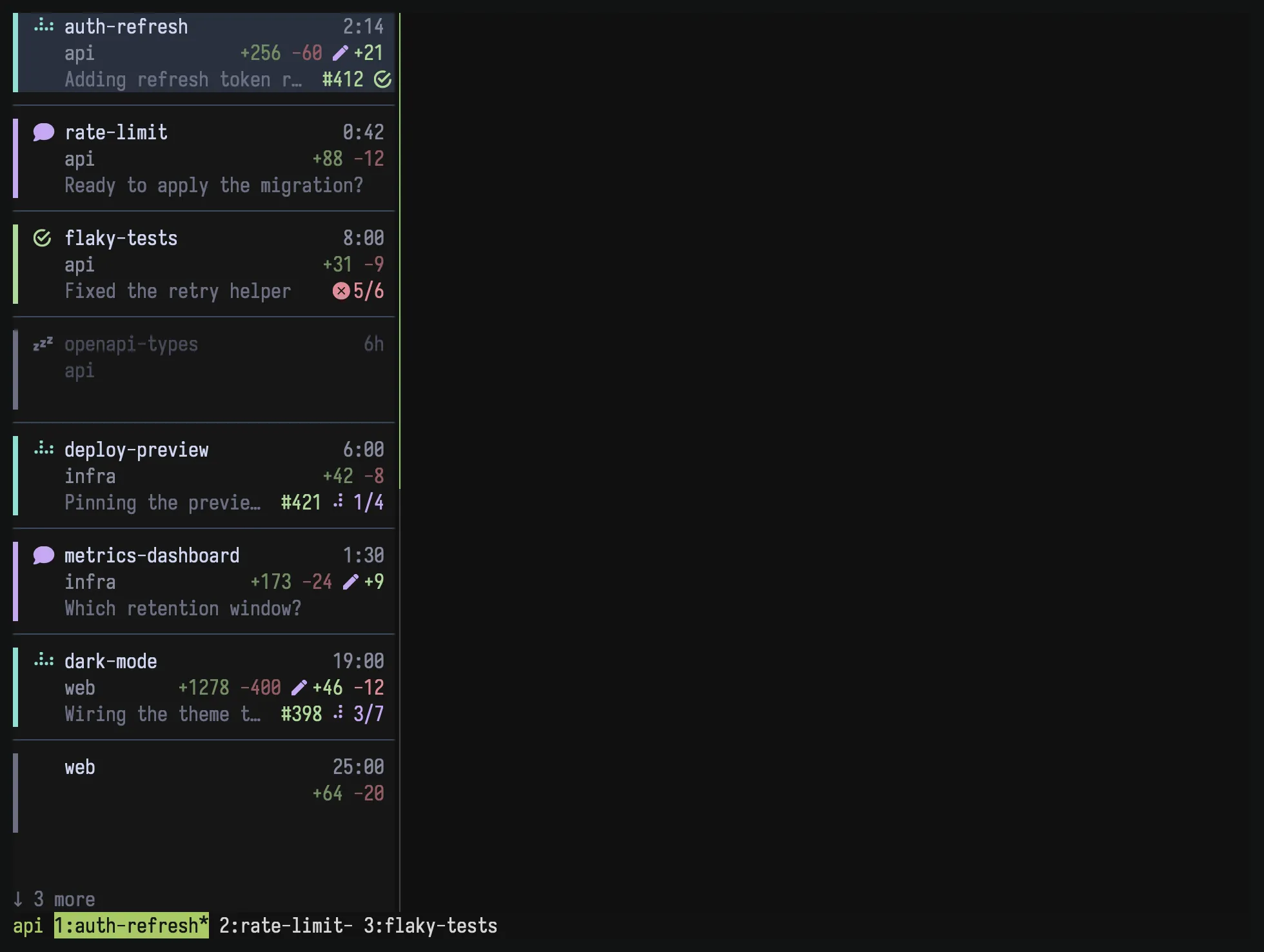
Tiles show a muted ↓ N more footer when agents remain below the visible area.
The count includes only hidden agents, not agents above the viewport. The footer
is not selectable and disappears when the final agent is visible. On very short
sidebars, showing the selected tile takes priority over the footer.
Your preference is persisted across tmux restarts. The top bar always uses a
horizontal chip layout, so v has no effect there. Horizontal templates render
as many configured lines as the current height allows.
Ordering
Section titled “Ordering”sort decides the order agents appear in:
recency(default): most recent status change first, sleeping agents last.priority: agents needing attention first, in the order waiting, done, working, unknown, stale or interrupted, then sleeping. Recent activity breaks ties. Waiting and done agents stay at the top however long they have been waiting, and a working agent drops down only when interruption detection sees it stop progressing.window: tmux window order, which keeps rows still while agents work. Pairs well with the{window_index}token.
Grouping
Section titled “Grouping”Grouping splits the list into sections with a header above each, one per repository or one per tmux session. It is off by default:
sidebar: group_by: project # or session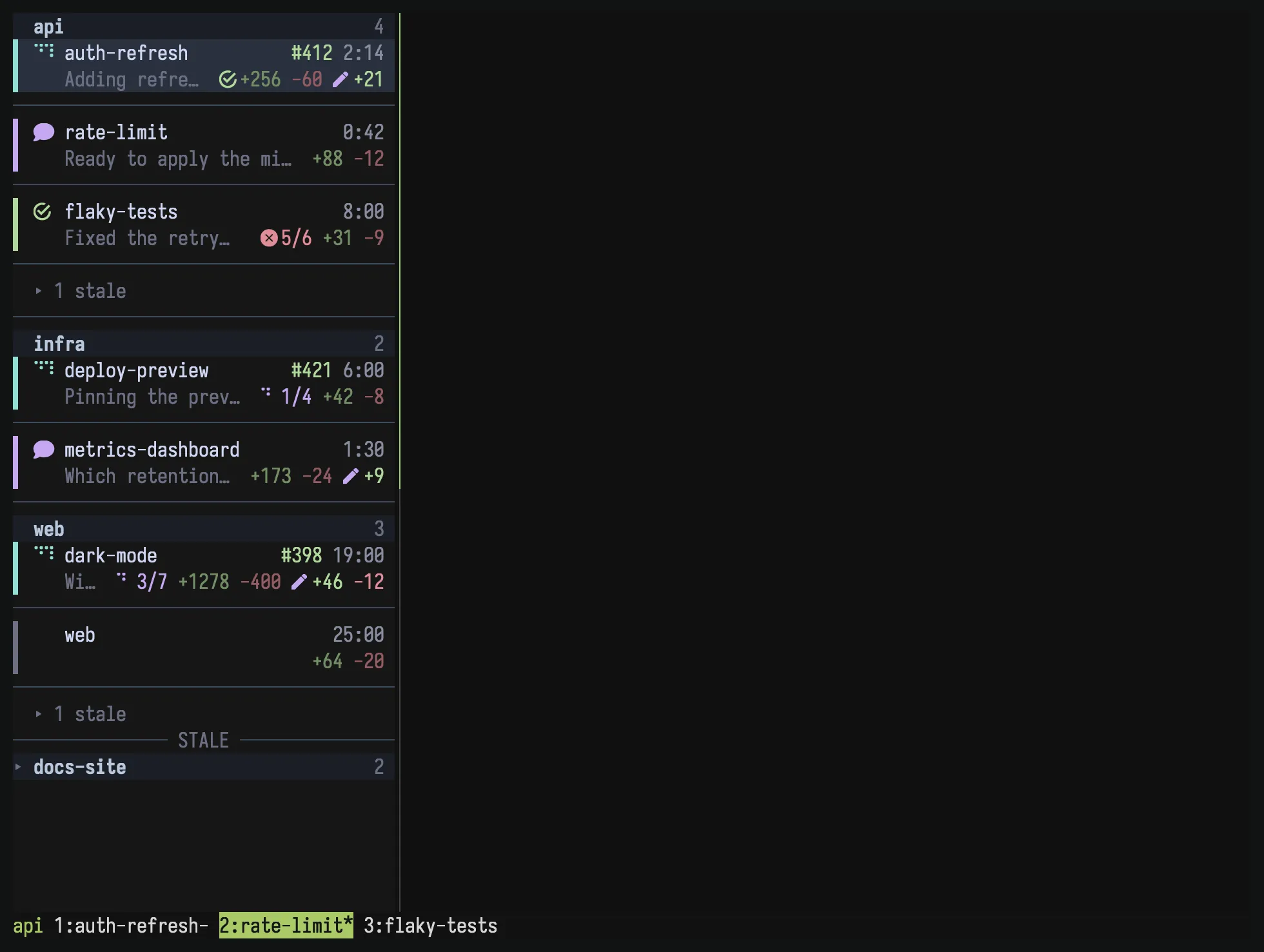
Sections are alphabetical and keep their place while agents change status, so a
row only ever moves within its own group. sort decides the order inside a
section.
Headers are labels, not agents: j/k and g/G skip them, they cannot be
selected or clicked, and they are not counted by {idx}, {jump_key} or
workmux sidebar next|prev|jump <N>. A header counts the agents that sidebar
shows, sleeping ones included. Scrolling into a group pins its header to the top
until the next group’s header replaces it.
Headers are drawn in the left sidebar only. With position: top, group_by
still orders the chips.
With the sidebar pane focused, press t to switch between grouped and flat.
From anywhere, use the command line:
workmux sidebar group # Toggle between grouped and flatworkmux sidebar group project # One section per repositoryworkmux sidebar group session # One section per tmux sessionworkmux sidebar group none # One flat list, no headersworkmux sidebar group --clear # Follow the config file againEvery sidebar switches together, the agent navigation commands follow the same
order, and the choice survives a tmux restart. It also overrides group_by
until you clear it, so run workmux sidebar group --clear once you have settled
on a value in config.
Grouped templates
Section titled “Grouped templates”A header already names the project or session, so the rows under it can leave
that out. Templates under templates.grouped apply while grouping is on:
sidebar: templates: grouped: header: "{group} {fill} {group_count}" tiles: - "{primary} {pane_suffix} {fill} {pr_number} {elapsed}" - "{pane_title} {fill} {pr_checks} {git_stats}"grouped accepts compact, tiles and header. A field you leave out falls
back to your ungrouped template of the same name, then to the grouped default,
so a sidebar you have already customized keeps its rows when you group it. See
Customization for the available tokens.
Folding stale agents
Section titled “Folding stale agents”While grouped, each group’s stale agents fold behind one toggle row that says
how many it stands for, so a project nobody is waiting on costs a line instead
of a screen. An agent counts as stale once it is sleeping, or once the configured
stale_after period passes with no activity and no working or waiting status:
the same agents dim_stale dims and the dashboard marks or filters out.
Set collapse_stale: false to list every agent at full height instead:
sidebar: group_by: project collapse_stale: falseA toggle row is selectable like any other: Enter or a click opens the fold the
selection sits on. From anywhere in a group, s folds and unfolds it, and l
and h (or the arrow keys) unfold and fold it. S opens every group at once,
or closes them all when any is open. Agents shown from a fold take one line each
rather than a full tile.
A group whose agents are all stale has no live rows to head, so its header
becomes its own toggle and the whole group costs one row. Those groups sort
below every group still holding live work, under a STALE rule.
Which groups are open is shared by every sidebar pane, for as long as the tmux server runs: closing and reopening the sidebar keeps your folds, restarting tmux collapses them again. A collapsed group still lists the agent of the window its sidebar sits in, so the sidebar never hides where you are, and the toggle counts only what stays folded.
While grouped, stale agents are not jump targets: {idx} and {jump_key} skip
them, workmux sidebar next|prev|jump <N> passes over them, and the numbers
close up rather than leaving gaps. That holds whether they are folded away or
shown, so what Alt+1 reaches does not change with the number of idle agents
above it. Select them with j/k or click them instead. A flat list numbers
every agent it shows.
Mouse support
Section titled “Mouse support”Click an agent tile or top-bar chip to jump to its pane, or scroll to navigate
the list. Requires set -g mouse on in your ~/.tmux.conf.
Keybindings
Section titled “Keybindings”These keys belong to the sidebar pane, so they work while it has focus. Move to it the way you move to any tmux pane, or click it.
| Key | Action |
|---|---|
j/k |
Navigate up/down |
Enter |
Run the configured action |
o |
Focus the agent pane |
g/G |
Jump to first/last |
v |
Toggle layout mode |
f |
Toggle session filter |
V |
Toggle rule-based views |
t |
Toggle grouping |
h/l |
Unfold/fold current group |
s |
Toggle the current fold |
S |
Fold/unfold every group |
z |
Toggle sleeping on agent |
? |
Show these keys |
q |
Open quit confirmation |
With enter_action: select, Enter shows the agent’s window and focuses that
window’s sidebar. This keeps j/k available for scanning; press o when you
want to enter the selected agent pane. If the target window has no sidebar,
Enter falls back to focusing its agent pane. Mouse clicks always focus the pane.
Session filter
Section titled “Session filter”By default, the sidebar shows agents across all tmux sessions. With the sidebar
focused, press f to show only agents in the same tmux session as the current
window; press f again to include other sessions. If views are enabled,
the window’s matching rules still apply.
The filter also applies to agent navigation hotkeys (next/prev/jump), so
Alt+j/Alt+k cycle through the current session when the session filter is
active.
You can also toggle the filter from the command line:
workmux sidebar filter # Toggle between none and sessionworkmux sidebar filter session # Filter to current sessionworkmux sidebar filter none # Turn off the session filterNamed views
Section titled “Named views”Configure sidebar.views to show agents from selected sessions or project
directories. Each window automatically shows the view matching its own agent.
Use other: true for a view containing everything that does not match your
other views.
Press V to turn views off across all sidebars and show all agents. Press it
again to restore each window’s matching view. You can also use
workmux sidebar view on or workmux sidebar view off.
See Named views for configuration
and matching rules.
Sleeping agents
Section titled “Sleeping agents”Select an agent in the sidebar and press z to mark it as sleeping. Sleeping agents show a 💤 icon
with dimmed colors and are pushed to the bottom of the list, regardless of their
actual status. Under group_by they sink to the bottom of their own group.
sort: window is the exception: it keeps every agent in window order, sleeping
ones included. This is useful for temporarily deprioritizing agents you don’t
need to monitor. Press z again to wake them up.
Agent navigation hotkeys
Section titled “Agent navigation hotkeys”You can switch between agents from any tmux pane using subcommands. These work in the same order shown in the sidebar:
| Command | Action |
|---|---|
workmux sidebar next |
Switch to the next agent (wraps) |
workmux sidebar prev |
Switch to the previous agent (wraps) |
workmux sidebar jump <N> |
Jump to the Nth agent (1-indexed) |
Example tmux keybindings
Section titled “Example tmux keybindings”# Alt+j / Alt+k to cycle agents (no prefix needed)bind -n M-j run-shell "workmux sidebar next"bind -n M-k run-shell "workmux sidebar prev"
# Alt+1..9 to jump directlybind -n M-1 run-shell "workmux sidebar jump 1"bind -n M-2 run-shell "workmux sidebar jump 2"bind -n M-3 run-shell "workmux sidebar jump 3"# ...How it works
Section titled “How it works”The sidebar is a bit of a hack on top of tmux’s pane system, but it works quite well. It uses a daemon + client architecture with event-driven rendering:
-
Toggle on (
workmux sidebar): creates a tmux pane on the left or top edge of every window, starts a background daemon, and installs tmux hooks. -
Daemon: a single headless process that polls tmux state every 2 seconds (or immediately when signaled via SIGUSR1). It reads agent state from a context-scoped filesystem cache, queries tmux for pane geometry and active windows, then pushes snapshots to all connected sidebar clients over a Unix socket. Unchanged records are reused without loading or parsing their JSON.
-
Clients: every tmux window gets its own sidebar pane running a separate
workmux _sidebar-runprocess. Each process connects to the shared daemon socket, receives snapshots via a background reader thread, and renders independently. The main thread blocks on a channel, only waking when new data arrives or a spinner tick is needed. Rendering is skipped entirely for inactive windows. This event-driven design keeps CPU usage near zero when idle. -
Hooks: tmux hooks handle lifecycle events:
after-new-window/after-new-session: automatically adds a sidebar pane to newly created windowswindow-resized: reflows the layout tree in every sidebar window, keeping all sidebars at the correct width or height regardless of which window was resizedafter-select-window/client-session-changed/after-kill-pane: signals the daemon for an immediate refresh
-
Layout reflow: when the sidebar is added or the terminal is resized, a layout tree parser reads the tmux
#{window_layout}string, scales the content subtree proportionally, and applies the result atomically viaselect-layout. This preserves existing pane proportions (e.g. a 70/30 split stays 70/30). -
Toggle off: kills all sidebar panes, reflows content panes to fill the freed space, stops the daemon, and removes hooks.
Resource usage
Section titled “Resource usage”Because tmux has no concept of a pane that persists across all windows, each
window runs its own _sidebar-run process. Each one uses roughly 15 MB of
resident memory, and the shared daemon (_sidebar-daemon) uses about 16 MB. With
five agents running, total memory footprint is around 90 MB. CPU usage is near
zero when idle thanks to the event-driven architecture.